Showing posts with label Google Chrome. Show all posts

Friday, June 14, 2013

Google Chrome sends personal data to Google by default, but it doesn’t have to. We’ll show you what information each feature sends to Google and why, so you can get the goodness of the Chrome browser without sacrificing privacy.
Each option provides an advantage, so you’ll lose some of Google Chrome’s features by disabling many of these options. Still, you can make informed decisions if you’re worried about Chrome sending data to the mothership.

Instant


Click the wrench menu at the upper right corner of the Google Chrome window, then click Options to view Chrome’s options page.
Chrome’s instant search works just like Google’s search page; a full Google search results page appears as soon as you start typing in Chrome’s address bar. Chrome sends everything you type into the address bar to Google if this is on, even if you’re typing a website address.
Instant is disabled by default for now, but you can uncheck the Enable Instant check box on the Basics tab if it’s enabled.

Sync

Chrome can synchronize your bookmarks, extensions, passwords and other browser data between your computers, but it does this by storing the data on Google’s servers.
If you’re not comfortable sharing this information with Google, click the Disconnect button on the Personal stuff tab to disable Chrome sync entirely.
Chrome can also encrypt your personal data, so you can store it on Google’s servers in an unreadable form. Click the Advanced button in the Sign In section and select “Encrypt all synced data” to activate Chrome’s encryption.
Use the “Choose my own passphrase” option and set up your own passphrase to ensure Google can’t read your personal data. You’ll need this passphrase on each computer you sync Chrome with.

Privacy Settings


The privacy section on the Under the Hood tab contains five different privacy options.
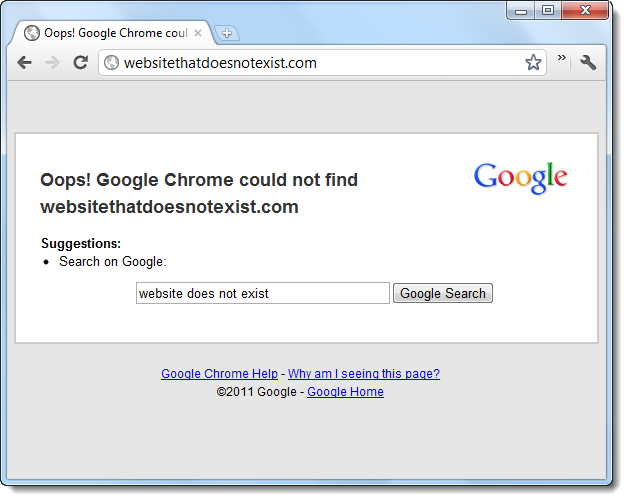

When Chrome can’t connect to a website, it sends the website’s address to Google. Google sends website and search suggestions in response, and Chrome Chrome displays them on a customized error page. Uncheck the Navigation Errors checkbox if you don’t want Chrome informing Google of website addresses when they won’t load.


Chrome sends everything you type into the address box to your default search engine. Google uses this information to offer similar website addresses and related searches in the menu that appears below the address bar. Disable the Prediction Service check box and Chrome won’t send everything you type into the box to Google.


Chrome automatically looks up the IP addresses of websites linked to from your current page. Sometimes, Chrome automatically loads a new web page in the background when the website you’re visiting instructs it to. The Predict Network Actions check box controls this behavior.


Google’s safe browsing feature has Chrome automatically download a list of potentially dangerous websites. When you visit a website that appears on the list, Chrome sends a portion of that website’s address to Google in an obfuscated form along with your IP address and a cookie, and Google tells Chrome whether the website is actually dangerous. Chrome won’t provide a warning when you access malicious websites if you disable this feature by unchecking the “Enable phishing and malware protection” check box.

The last option is the only one that’s disabled by default. It causes Chrome to send detailed information about crashes, preferences and other general browser information to Google if you enable it. Chrome never sends the address of every website you visit to Google, but it will send the full address of potentially malicious websites if you enable this option.

Cookies


Click the Content Settings button in the Privacy section to view more options.


Enable the “Block third-party cookies” check box to prevent Chrome from accepting third-party cookies, which are often used by advertisers to track you online. Some websites won’t work properly if you enable this option, so you might have to disable it later.


Select the “Allow local data to be set for the current session only” option to have Chrome automatically delete cookies when you close it. This approach isn’t as drastic as disabling cookies entirely; websites that depend on cookies will still work. Websites won’t be able to track you over time with cookies, although you’ll have to log back into all your accounts after reopening Chrome.

Location Tracking


Scroll down to the Location section on the Content Settings pane and ensure the location feature isn’t set to Allow All Sites. Chrome’s geolocation feature allows websites to track your physical location and offer local content such as weather or directions, but Chrome asks you before sharing your location with websites by default. You can also set the option to Do Not Allow to disable the location-sharing feature entirely.
__________________________________________________________________

Whether you’ve disabled all the features listed here or left the ones that seem useful enabled, you’re now in control of Chrome’s privacy options. SRware Iron makes many of the same changes, but it’s a one-size-fits-all solution.

Each major web browser shares a large number of keyboard shortcuts in common. Whether you’re using Mozilla Firefox, Google Chrome, Internet Explorer, Apple Safari, or Opera – these keyboard shortcuts will work in your browser.
Each browser also has some of its own, browser-specific shortcuts, but learning the ones they have in common will serve you well as you switch between different browsers and computers. This list includes a few mouse actions, too.

Tabs

Ctrl+1-8 – Switch to the specified tab, counting from the left.
Ctrl+9 – Switch to the last tab.
Ctrl+Tab – Switch to the next tab – in other words, the tab on the right. (Ctrl+Page Upalso works, but not in Internet Explorer.)
Ctrl+Shift+Tab – Switch to the previous tab – in other words, the tab on the left. (Ctrl+Page Down also works, but not in Internet Explorer.)
Ctrl+WCtrl+F4 – Close the current tab.
Ctrl+Shift+T – Reopen the last closed tab.
Ctrl+T – Open a new tab.
Ctrl+N – Open a new browser window.
Alt+F4 – Close the current window. (Works in all applications.)

Mouse Actions for Tabs

Middle Click a Tab – Close the tab.
Ctrl+Left Click, Middle Click – Open a link in a background tab.
Shift+Left Click – Open a link in a new browser window.
Ctrl+Shift+Left Click – Open a link in a foreground tab.

Navigation

Alt+Left Arrow, Backspace – Back.
Alt+Right Arrow, Shift+Backspace – Forward.
F5 – Reload.
Ctrl+F5 – Reload and skip the cache, re-downloading the entire website.
Escape – Stop.
Alt+Home – Open homepage.

Zooming

Ctrl and +, Ctrl+Mousewheel Up – Zoom in.
Ctrl and -, Ctrl+Mousewheel Down — Zoom out.
Ctrl+0 – Default zoom level.
F11 – Full-screen mode.

Scrolling

SpacePage Down – Scroll down a frame.
Shift+Space, Page Up – Scroll up a frame.
Home – Top of page.
End – Bottom of page.
Middle Click – Scroll with the mouse. (Windows only)

Address Bar

Ctrl+LAlt+DF6 – Focus the address bar so you can begin typing.
Ctrl+Enter – Prefix www. and append .com to the text in the address bar, and then load the website. For example, type howtogeek into the address bar and press Ctrl+Enter to open www.howtogeek.com.
Alt+Enter – Open the location in the address bar in a new tab.

Search

Ctrl+KCtrl+E – Focus the browser’s built-in search box or focus the address bar if the browser doesn’t have a dedicated search box. (Ctrl+K doesn’t work in IE, Ctrl+E does.)
Alt+Enter – Perform a search from the search box in a new tab.
Ctrl+FF3 – Open the in-page search box to search on the current page.
Ctrl+GF3 – Find the next match of the searched text on the page.
Ctrl+Shift+GShift+F3 – Find the previous match of the searched text on the page.

History & Bookmarks

Ctrl+H – Open the browsing history.
Ctrl+J – Open the download history.
Ctrl+D – Bookmark the current website.
Ctrl+Shift+Del – Open the Clear Browsing History window.

Other Functions

Ctrl+P – Print the current page.
Ctrl+S – Save the current page to your computer.
Ctrl+O – Open a file from your computer.
Ctrl+U – Open the current page’s source code. (Not in IE.)
F12 – Open Developer Tools. (Requires Firebug extension for Firefox.)
__________________________________________________________________

Does one of these keyboard shortcuts not work in a specific browser, or is there another important one we missed here? Leave a comment and let us know.

We’ve recently been hearing about tracking cookies and laws in the European Union forcing websites to explain their use of cookies to their visitors. If you’re wondering what cookies are and what all the fuss is about, you’re not alone.
Cookies are an important browser feature – if you disable cookies, you’ll find yourself unable to log into websites. While cookies have important, good uses, they also have more questionable uses.

What’s a Browser Cookie?

Cookies are small pieces of information websites store on your computer. Cookies only contain bits of text, not anything else. The text can be a user ID, session ID, or any other text. For example, web pages can be configurable – a web page could have a Hide link that hides a certain element on the page. The page can save this setting on your computer with a cookie. When you load the page in the future, the page can examine the cookie and automatically hide the element.
If you clear your cookies, you’ll be logged out of all websites and websites won’t remember any settings you’ve changed on them.
Cookies are very common – you probably have hundreds or even thousands stored in your browser right now.

How Cookies Work

Your web browser stores and manages cookies. You can find a list of websites storing cookies and view the cookies themselves – although it’s usually not interesting to look at the content of the cookies – in your browser’s settings. If you use multiple web browsers on your computer, each browser has its own set of cookies.
Websites are only allowed to look at their own cookies – for example, when you visit How-To Geek, we can’t examine cookies from other websites. This prevents malicious websites from snooping and stealing your login sessions.

Good Uses for Cookies

As we’ve seen, cookies have a number of very important uses. The web wouldn’t be what it is without them today.
  • Cookies store your login state. Without them, you wouldn’t be able to log into websites. Websites use cookies to remember and identify you.
  • Cookies store preferences on websites. You couldn’t change settings and have them persist between page loads without cookies.
  • Cookies allow websites to provide personalized content. For example, if you’re shopping on Amazon, Amazon can remember the products you’ve browsed and recommend similar products – even if you’re not logged in.


“Bad” Uses for Cookies

However, cookies can also be used for more questionable purposes. Advertising and tracking networks use tracking cookies to track you across the web. When you visit website that uses scripts from an advertising network, that network can set a cookie in your browser. When you visit another website that uses tracking scripts from the same network, the advertising network can check the value of your cookie – it knows the same person visited both websites. In this way, the advertising networks track you across the web.
This information is used to target ads to you – for example, if you search for car insurance and later visit a news website, you may see advertisements for car insurance on the news website. The advertisements may not be related to the website you’re currently on, but they will be related to the websites you were visiting before. Depending on the advertising network, you may be able to opt out of this – as with the Google Ads Preferences page, which also shows the advertising categories you’ve been assigned by Google based on the websites you’ve been tracked across.

Tracking networks can also use the data for other purposes – for example, selling aggregated browsing data to others.

Managing Your Browser’s Cookies

You can manage your browser’s cookies from its settings window. Each browser’s Clear Private Data tool will also delete cookies. For information on viewing and clearing your browser’s cookies.
__________________________________________________________________
One problem with clearing cookies is that it will log you out of sites you use. If you want to stay logged into the websites you use but block other websites from using cookies, check out our guide to blocking all cookies except for the sites you use. Bear in mind that some websites won’t work properly if you disable cookies for them.

Monday, June 10, 2013

If you are regularly seeing the “Whoa! Google Chrome has crashed” message, there is likely a problem on your system. An occasional crash can happen, but regular crashes are probably caused by something you can fix.
If you are curious just how often Chrome is crashing, you can type chrome://crashes into your location bar and press Enter to view a list of crashes and when they occurred. This is just one of Chrome’s many hidden chrome:// pages.

Check For Conflicting Software

Some software on your computer can conflict with Google Chrome and cause it to crash. This includes malware and network-related software that interferes with Google Chrome.
Google Chrome has a hidden page that will tell you if any software on your system is known to conflict with Google Chrome. To access it, type chrome://conflicts into Chrome’s address bar and press Enter.
You can also check the Software that crashes Google Chrome page on Google’s website for a list of software that causes Chrome to crash. The page includes instructions for solving conflicts with some conflicting software.
If you have conflicting software on your system, you should update it to the latest version, disable it, or uninstall it. If you are not sure which software a module is related to, try Googling the name of the library.

Scan for Malware

Malware can also interfere with Google Chrome and cause it to crash. If you are encountering regular crashes, you should scan your computer with antivirus software like Microsoft Security Essentials. If you already have antivirus software installed, you may want to get a second opinion from another antivirus program.

Solve Flash Crashes

We have found that the Flash plugin Chrome includes can cause it to crash in some cases. If you are seeing regular Shockwave Flash crashes, you may want to try disabling the internal Flash plugin and using the standard Flash plugin in Google Chrome.

Switch to a New Profile

Chrome crashes may be caused by a corrupted profile. You can test this by creating a new profile from Chrome’s Settings screen. Open the Settings page from Chrome’s menu and click Add new user under Users.
Change to the new profile after creating it and see if the crashes continue to occur. You can sign into Chrome with your Google account to sync the data from your old profile. However, Google recommends you don’t copy any files from the old profile folder by hand – they may be corrupted and causing the problem.

Fix System File Problems

Google recommends running the SFC.EXE /SCANNOW program to check for – and fix – problems with protected system files on your Windows system if you are encountering crashes. To do this, locate the Command Prompt in your Start menu (press the Windows key and type Command Prompt), right-click it, and select Run as Administrator.
Type the following command in the Command Prompt window and press Enter:


Windows will scan your computer for problems with system files sand fix any problems it finds.

__________________________________________________________________

Hardware issues can also cause Chrome crashes. You may want to test your computer's RAM and ensure it isn’t faulty.